Recurring tasks for Windows, with reminders
Water the plants every week, send the report every month, renew the insurance every year. Some tasks come back on a schedule.
PineTodo supports repeating tasks on six schedules: daily, weekdays (Mon–Fri), weekly, every two weeks, monthly and yearly. When you complete a repeat, the finished copy is saved to your history and the live task rolls forward to its next date, and a small notice shows when it returns.
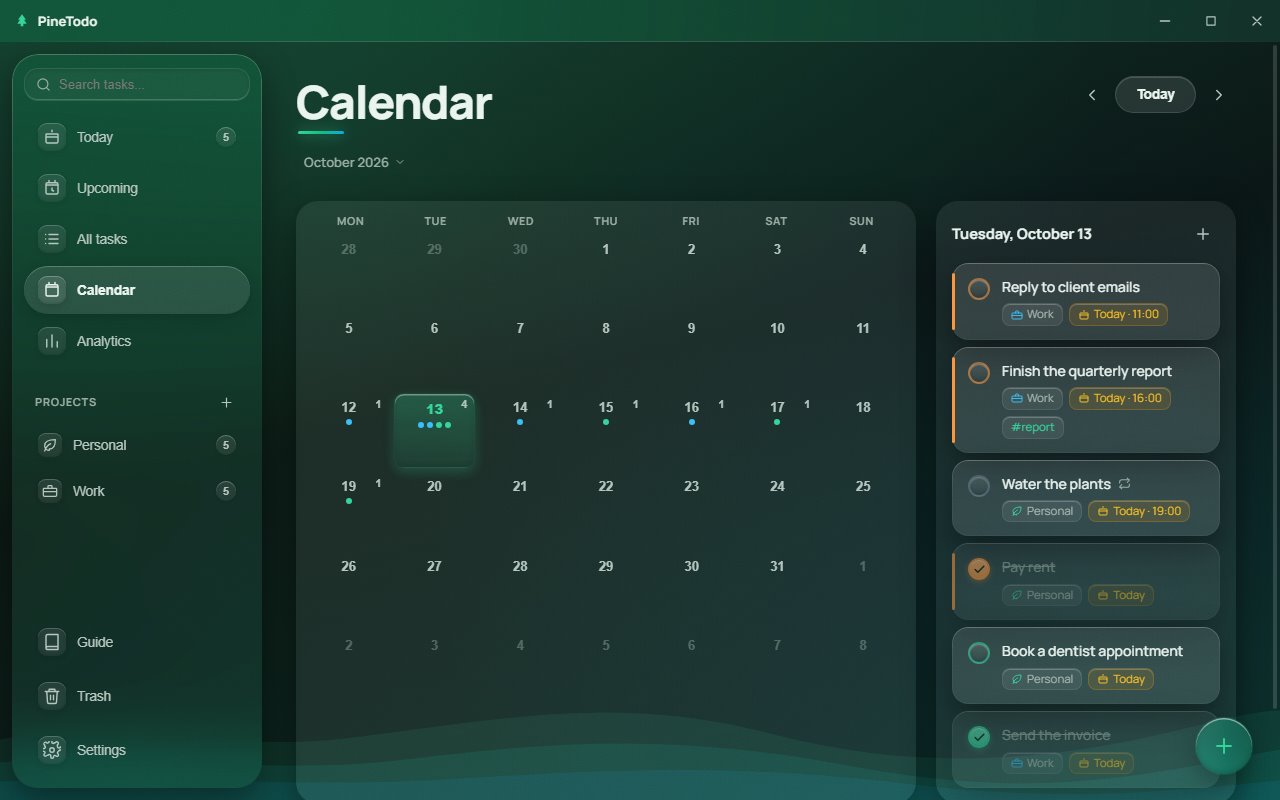
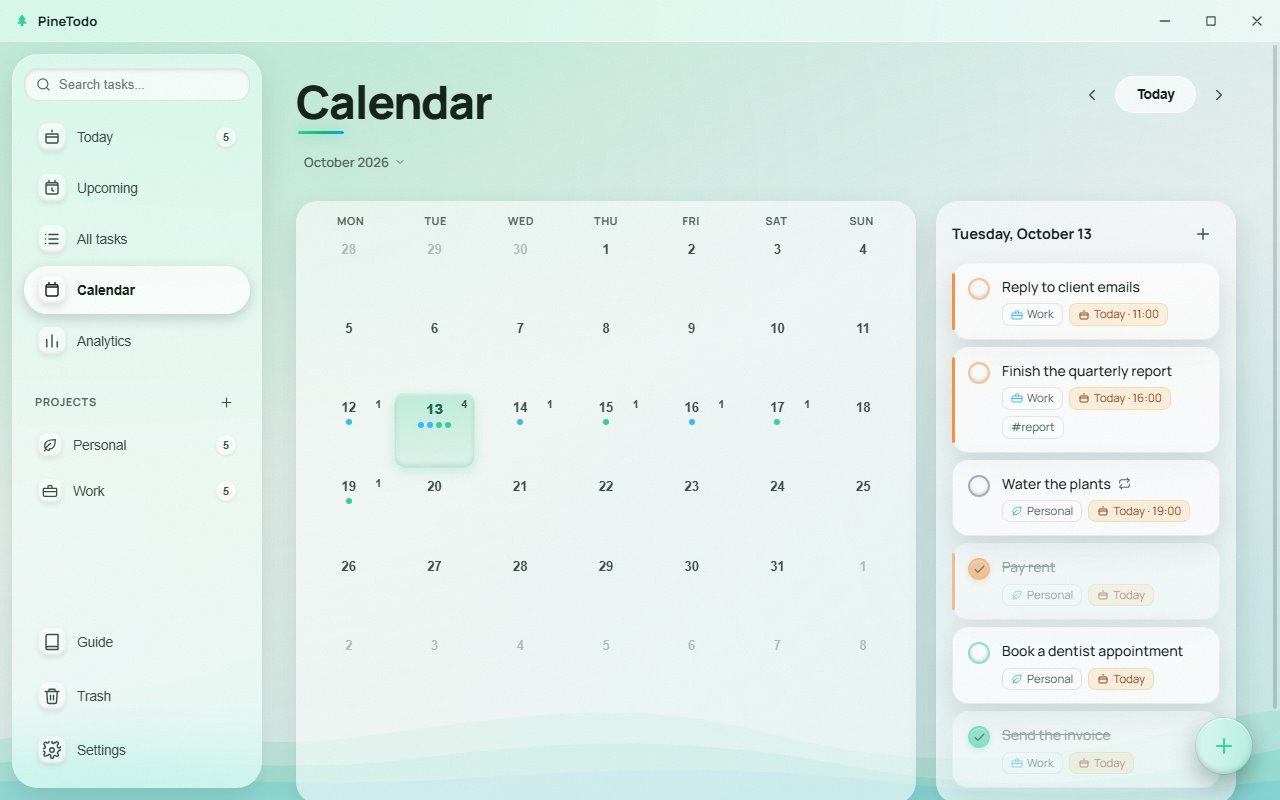
Setting a repeat
- Create or edit a task and choose a schedule under Repeat, or just type it:
read 20 pages every day,team retro every 2 weeks,rent every month,standup every weekday. - Give it a date and, if you like, a time. That anchors the schedule.
- Complete it as usual. The done copy goes to Completed; the task itself moves to the next occurrence.
How repeats are handled
- History is preserved. Every completion is banked as its own record, so your 14-day chart and streak reflect real work, not just the surviving task.
- Weekday schedules skip weekends. A "weekdays" task completed on Friday returns on Monday.
- Overdue repeats don't pile up. Completing a repeat that slipped a few days rolls it to the next date after today, not to a date already in the past.
- Stopping is one click: set Repeat to "Doesn't repeat" and the task becomes ordinary; deleting it also removes the schedule.
Repeats work everywhere tasks do: the Today list, the calendar and the desktop widget.
Reminders
Any task with a date can have a reminder. The options are No reminder, At time of task, 5 minutes before, 30 minutes before, 1 hour before, 1 day before and Morning of. A new task with a date starts with the default, which is 30 minutes before the due time. Change the default under Settings, Behaviour, Default reminder.
Reminders arrive as Windows notifications while PineTodo is running. Closing the window leaves the app running in the tray, so reminders keep coming. If you quit PineTodo from the tray menu, or the PC is off, nothing is sent. Turn on Start with Windows in Settings if you want the app running after every sign-in. More on the tray and autostart.
Try it on your own tasks. Free · Windows 10 & 11 · about 147 MB · no account.
Installs to your user folder. No administrator rights needed.
PineTodo is for Windows 10 and 11. Open this page on your Windows PC to download it.
Frequently asked questions
Why does a recurring task reappear after I complete it?
That is the repeat doing its job: the completion is saved to history, and the task rolls to its next scheduled date. A toast shows the new date. To finish a task forever, set its Repeat to "Doesn't repeat" first.
Can a task repeat on specific weekdays?
PineTodo ships six schedules including weekdays (Monday to Friday) and weekly repeats anchored to the weekday you chose. Typing "every monday" pins it to Mondays.
Do recurring tasks need an internet connection?
No. Schedules are computed locally, entirely offline, like everything else in PineTodo.